Can an AI agent check parking payments before invoicing?
Inside the parking invoice AI agent Capto built: every system and check behind each invoice, from booking records to licence plates and VAT rules.

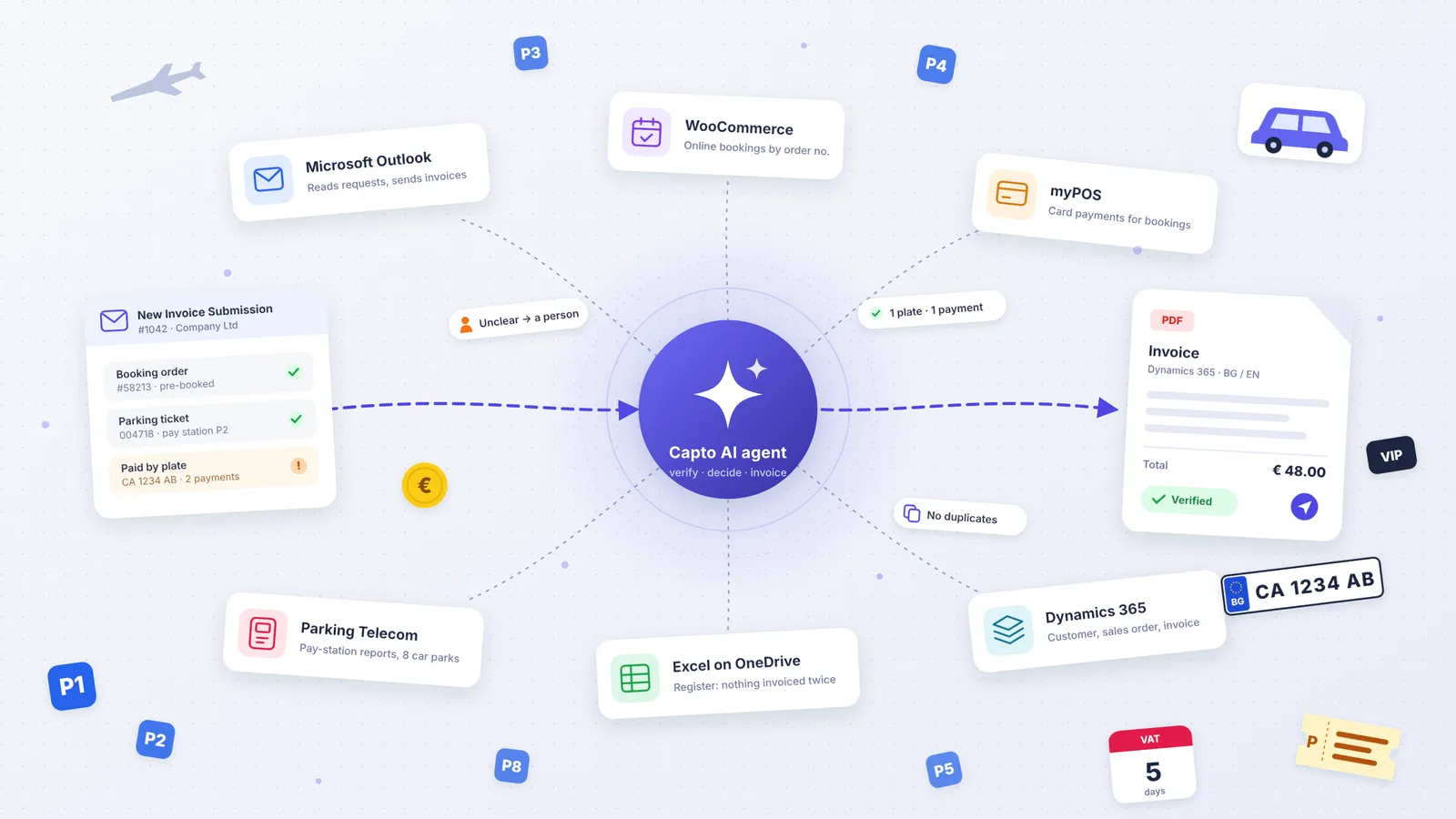
Key takeaways
- This agent checks five systems for each request: Outlook, an online booking site, payment reports for eight car parks, an Excel register on OneDrive and Microsoft Dynamics 365.
- The AI agent takes each invoice request from the Outlook inbox to a sent PDF invoice in Microsoft Dynamics 365 without manual handling.
- Pre-booked stays are checked by order number. Drive-up stays are checked by ticket number, or by licence plate and date when the driver paid by plate. Anything ambiguous, such as two payments for the same plate on one day, goes to a person with the reason. The agent never guesses.
- Bulgarian VAT invoicing deadlines are applied to the payment date, so late requests get a bilingual explanation instead of an invoice.
- Senior accountants no longer do the data entry and cross-checking, and can focus on analysis, review and advisory work.
- The full cycle from request to sent invoice runs 80% faster than the manual process.
Short answer: Yes. An AI agent can take invoice requests from Outlook to a sent PDF invoice in Microsoft Dynamics 365 without manual steps. For example - Capto built one for SofConnect, the operator of Sofia Airport - it verifies payments on two platforms, creates clients and sales orders, and emails the invoice, running the process 80% faster. It even applies duplicate and VAT-deadline rules, and only then creates the customer, sales order and PDF invoice in Microsoft Dynamics 365.
| Process | Accounts Receivable & Collections |
|---|---|
| Industry | Logistics & transport |
| Systems | Dynamics 365, Parking Telecom, Outlook, Excel, OneDrive |
| Result | 80% faster from invoice request to sent invoice |
Book a demo
See an AI agent chase and match your receivables.
30-minute call with a finance automation expert.
Book a demoNo commitment · Clutch-verified reviews
On this page
- Who requests a parking invoice?
- What does a parking invoice request contain?
- Which systems does this agent check?
- How does the agent verify a pre-booked parking stay?
- How does it verify a ticket paid at a pay station?
- What other checks run before an invoice is created?
- How does the agent create the customer and invoice in Dynamics 365?
- What happens after the invoice is posted?
- What results can you expect?
- Can other airports and companies use the same approach?
Who requests a parking invoice?
Most drivers pay for parking and leave without an invoice. A request comes in when someone needs one, and those people fall into a few clear groups. Each group brings different data and a different tax treatment.
- Business travellers who parked for a trip and need an invoice in their company's name to claim the expense. They give the company name, registration number and, if they have one, a VAT number.
- Private individuals who need an invoice in their own name, identified by their Bulgarian personal number (UCN).
- Foreign customers, companies and individuals from EU and non-EU countries. Their country and VAT status set the VAT treatment and the invoice language.
- Pre-booked and drive-up drivers. Some booked a space online and paid by card. Others drove in and paid at a pay station in cash or by card.
- Frequent travellers who send several receipts in one request, for example a month of trips.
Everyone uses the same request form, but the checks behind it differ. That is why the agent handles every receipt in a request on its own.
What does a parking invoice request contain?
Customers fill in an invoice request form. Each submission arrives in an Outlook mailbox as an email titled “New Invoice Submission #…” with a unique submission ID. The agent reads the mailbox through Microsoft Graph and picks up everything since the start of the previous day, so a request sent just before a run is not missed.
A request holds the customer's details (company or person, country, address, email) and one or more receipts. Each receipt has either an online booking order number or a parking ticket number, plus the licence plate and the payment date.
Which systems does this agent check?
One request can take the agent through five systems. The table shows what it does in each one.
| System | What the agent does there |
|---|---|
| Microsoft Outlook (Microsoft Graph) | Reads new invoice requests. Sends invoices, decline notices and the daily summary. |
| Online booking site | Confirms pre-booked stays by order number. |
| Parking Telecom cloud | Downloads payment reports for eight car parks, |
| Excel registers on OneDrive | Record every invoiced ticket, order, submission and sales order, so nothing is invoiced twice. |
| Microsoft Dynamics 365 Finance & Operations | Finds or creates the customer, creates the sales order, posts the invoice and exports the PDF. |
How does the agent verify a pre-booked parking stay?
For a receipt with an order number, the agent searches for the booking in the airport's online booking system. The booking must have the status Completed. A booking that is still “Pending payment”, cancelled or not found goes no further.
From the booking the agent takes the licence plate, car park, amount paid, payment date, and the start and end of the stay. The stay becomes the billing period on the invoice and the amount becomes the invoice line. If any of these fields is missing, the receipt is flagged instead of invoiced with a gap.
How does it verify a ticket paid at a pay station?
Drive-up customers pay at pay stations in each car park. The agent logs in to Parking Telecom once per run and downloads the payment report for each of the eight car parks, starting from the earliest payment date in the batch. It labels every report with its car park, because the export itself does not say where it came from.
A ticket number is unique, so one match in the reports is conclusive. If the same ticket appears more than once, the receipt goes to a person.
From the matched payment the agent takes the amount, the car park, the pay station and whether it was paid in cash or by card.
What other checks run before an invoice is created?
- Already invoiced. Every ticket and order number is checked against the Excel register on OneDrive. A receipt that was invoiced before is declined.
- Duplicates in the same batch. If two different companies send the same ticket or order number, both are stopped. If one company sends the same receipt twice, it is invoiced once and the earlier submission wins.
- VAT deadline. Bulgarian rules give five days from the taxable event to issue the invoice. The agent applies this to the payment date, not the email date. Payments from the current month are always accepted, the previous month only until the 5th, and older or future-dated payments are declined.
- Partial requests. Receipts are checked one by one. Those that pass are invoiced and the rest go to staff with the reason, so one bad receipt does not block the good ones.
Customers whose request is declined get an email in Bulgarian and English. It either explains the deadline or the duplicate, or asks for the cash receipt, parking ticket or booking confirmation so the team can finish the request by hand. A customer whose request is partly invoiced gets no decline, because an invoice is already on its way.
How does the agent create the customer and invoice in Dynamics 365?
The agent first looks for the customer in Dynamics 365. Companies are searched by registration number and by name, with legal suffixes such as ООД, ЕАД, Ltd or GmbH removed so that “Example Ltd” matches “Example”. Individuals are searched by name and personal number.
A new customer is created as an organisation or a person, with customer group, payment terms, euro currency, registration number, VAT number and country. The sales tax group follows the country and VAT status: Bulgaria, EU with or without a VAT number, or non-EU with or without one. Bulgarian customers get invoices in Bulgarian, everyone else in English.
The agent then creates the sales order. Receipts in one request are grouped into one invoice per payment date, stay period and payment type, with one line per receipt mapped to the car park's item: Terminal 1, Terminal 2 or VIP.
The header carries the date of the taxable event, the billing period and the payment method code (online card, or cash or card at Terminal 1 or Terminal 2). It also carries a remark with the submission ID, ticket or order number and licence plate, so every invoice can be traced back to its payment.
Before posting, the agent checks that every line has a car park and an amount above zero. It posts the invoice, reads the invoice number back from the journal as proof, and exports the PDF.
What happens after the invoice is posted?
The agent emails the PDF to the address on the request with a bilingual cover note. It then records the ticket, order, submission and sales order numbers in the registers on OneDrive. If a register is open and locked by a colleague, the sales order numbers are emailed to support so nothing is lost.
At the end of each run the finance team gets one summary email: invoices sent, requests declined with the reason, receipts that need review and any invoice that failed in Dynamics 365. Screenshots of failed steps are saved to OneDrive.
What results can you expect?
The full process from request to sent invoice runs 80% faster than the manual workflow. Senior accountants no longer search booking records and payment reports one receipt at a time. They review only the cases the agent could not resolve, and each one arrives with its reason.
80% faster from invoice request to sent invoice
Can other airports and companies use the same approach?
Most airports have the same mix: several car parks, pre-booked and drive-up customers, pay stations that record licence plates, and requests from companies, individuals and foreign travellers. The checks in this article map to those parts, whatever parking system, booking engine or ERP an airport runs.
Capto builds each agent around the systems a client already has. For another airport, or company processing complex invoices, most of the work is connecting the multiple systems and setting the local tax rules.
It is a weaker fit where the pay station already issues the invoice, or where requests are rare. There, a simpler fix may be enough.